How to send a sequence manually, schedule it and send a test
Send a sequence to one customer by email, SMS or WhatsApp, schedule it, send a test and manage scheduled sendings.
Use Send a sequence to send a sequence to one customer right away or at a later time, for example to try it yourself before using it with customers.
Open the send window
In the left-hand menu, open Feedback, then Sendings.
Click Send sequence. You need the permission to create sendings; the button is greyed out otherwise.
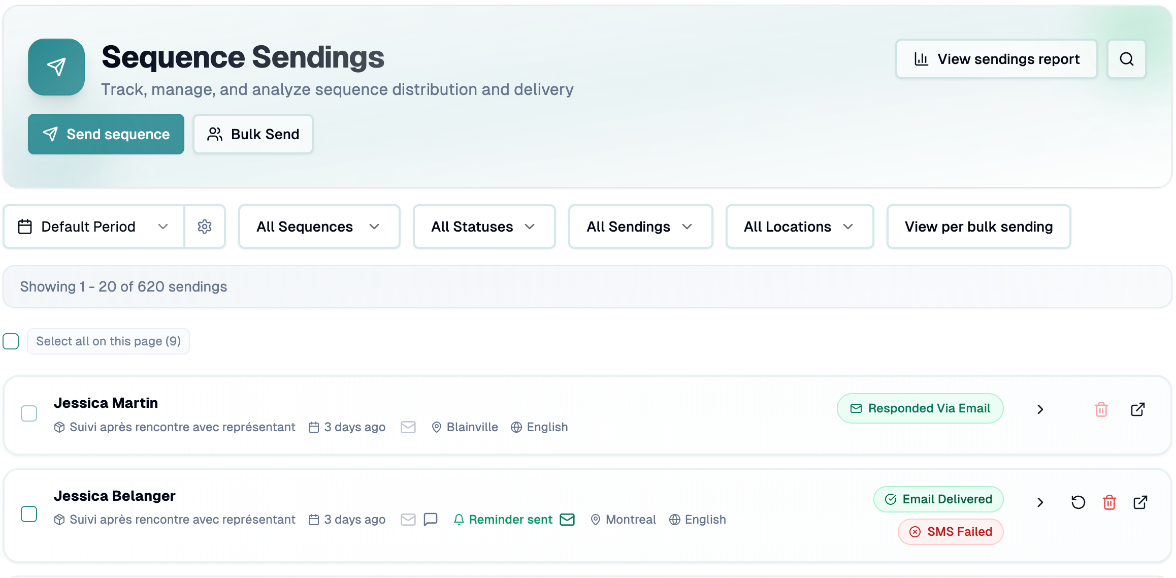
You can also open it from the Sequences page.
Fill in the window
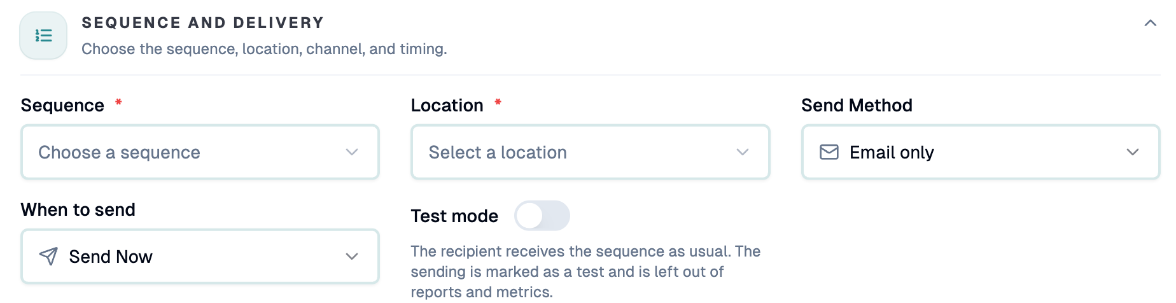
1. Sequence and delivery
Sequence: search and choose the sequence.
Location: shown only if you have several locations.
Send Method: Email only, SMS only, Email and SMS, or WhatsApp (when available). SMS options are disabled until SMS is set up. The default follows your company's sending strategy.
When to send: Send Now or Schedule sending. When scheduling, pick the date and time; by default it is set about 5 minutes ahead.
Sending language: shown when the sequence has several languages.
Test mode: see below.
2. Recipient
Search for an existing customer or choose New customer, then fill in first name, last name, honorific, email and phone. You need an email for email sending and a phone number for SMS or WhatsApp.

3. Context (optional)
Add an organization, employees, departments or services to link to the sending.
4. Custom fields
Use the Customer and Sending tabs to fill in your custom fields. Fields marked with * are required.
Click Send sequence (or Schedule Sending when scheduling).
Send a test
Turn on the Test mode switch before sending. The recipient, for example you or a colleague, receives the sequence as usual, but the sending is marked as a test and is left out of your reports and metrics.
To remove a test sending afterwards, find it in the Sendings list and use the trash action Delete Test Sending.
Notes about tests:
A manual test is delivered for real, so the customer receives the message.
The minimum interval between two sendings is not enforced for manual sendings.
Alerts you may see
Click Show alerts in the window to review warnings before you send.
Interval: if you send to this customer, the interval defined between two sendings will not be respected. This is a warning only.
Quiet hours: if your company blocks sendings between 9 p.m. and 6 a.m., a scheduled sending in that window moves to 6 a.m. the same or next day. You can change this under Company, Sending, Block sendings between 9 p.m. and 6 a.m.
SMS limit reached: when your SMS quota is used, the sending continues by email if the customer has an email address.
Customer opted out: sending is blocked for channels the customer unsubscribed from.
WhatsApp template: WhatsApp needs an approved template for the sequence and language.
Manage scheduled sendings
Scheduled sendings appear in Scheduled Queue on the Sendings page, with a status of Scheduled, Processing, Completed or Failed. For a Scheduled item you can:
Reschedule: choose a New date & time and click Reschedule. Quiet hours are applied again.
Delete: cancels the scheduled sending.
Send to many customers at once
Use Bulk Send to import a CSV or Excel file. See the article on importing a file for manual sending.
If you have any questions, feel free to contact us via the chat.