The Verbatims report: sentiment, themes and categories
See what customers say across surveys and reviews, spot recurring themes and organize your categories.
The Verbatim Insights report analyzes the comments your customers leave and shows the sentiment and the themes behind them.
Who can see it
You need the permission to view verbatim reports and the AI Assistant add-on. Without the add-on, the report doesn't appear in the menu.
Open the report
In the left-hand menu, open Reports, then Verbatims.
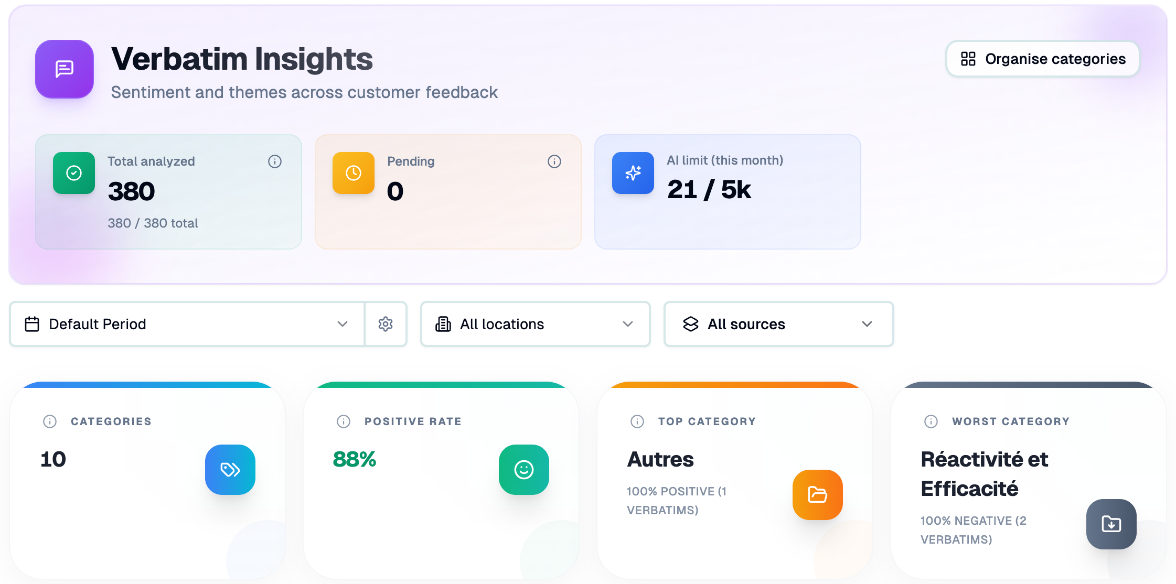
Filter what you analyze
At the top, choose:
the period;
the location (All locations by default);
the source: Survey, Google review, Facebook review, Capterra review or Aircall calls.
Active filters appear as chips; click Clear all filters to reset. The header also shows Total analyzed, Pending and your AI limit (this month), with Increase AI limit when needed.
Read the report
Key figures: Categories, Positive rate, Top category and Worst category.
Insights to watch: the highest-risk category, the toughest day, a high share of negative feedback, recurring words and the most mentioned topics in negative comments.
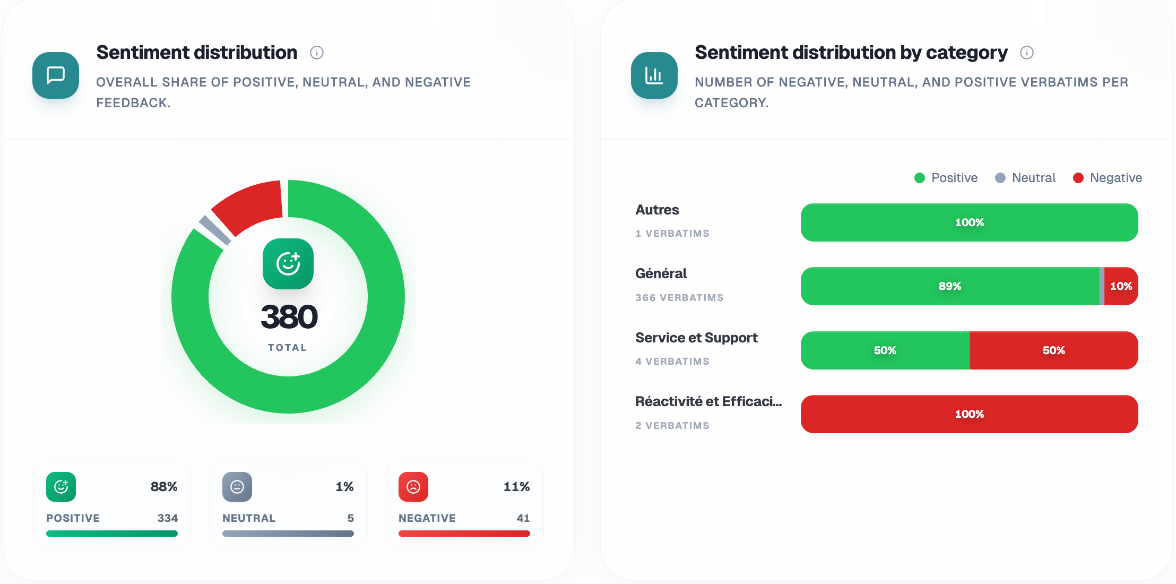
Sentiment by source and Sentiment distribution.
Sentiment distribution by category: click a category or a sentiment segment to open the list of comments behind it.
Category sentiment over time.
Groups, topics and keywords by sentiment: switch between Groups, Topics and Keywords, then click an item to read example comments.
Sentiment is shown as positive, neutral or negative.
Theme Spotter
Theme Spotter gives you an automatic analysis of your main themes. To dig deeper:
Type a question in Ask another question (500 characters at most), for example "What are the most frequent negative comments?".
Click Create analysis.
When it is Completed, read the table: Theme, Description, share of Verbatims, Sendings and Locations (20 themes at most).
Past analyses are listed under Analyses, where you can delete them. Only completed analyses count toward your AI limit.
Organize your categories
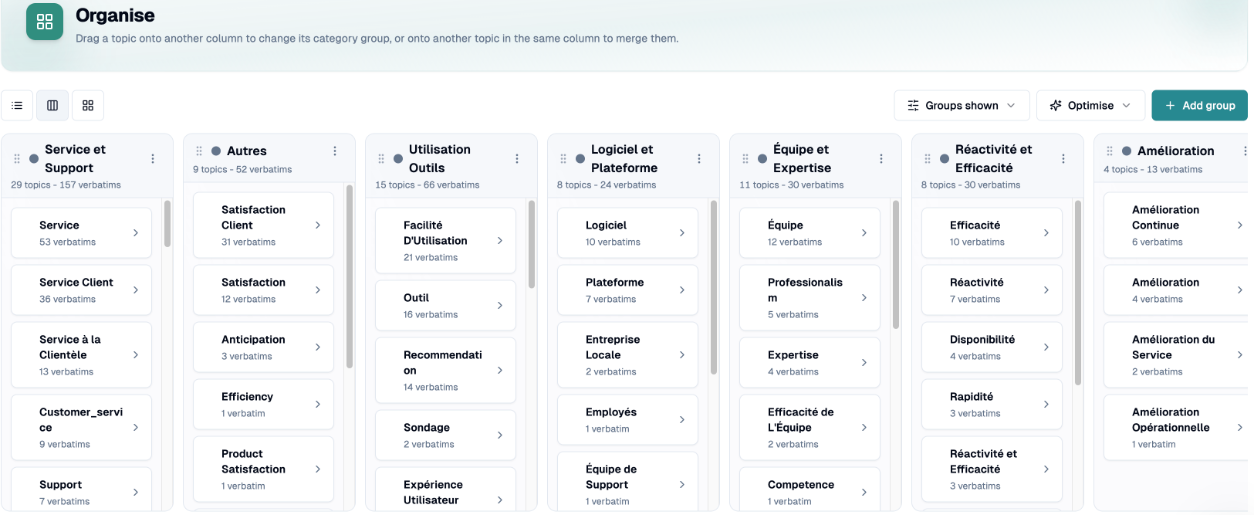
Click Organise categories to open the board.
Drag a topic to another column to change its category group, or onto another topic of the same column to merge them. Merging is permanent and applies to all past data.
Add group, Rename category or Delete category (its comments become Unassigned).
Switch the view: Kanban, grid or accordion.
Optimise topics by groups and Full optimisation (up to 8 groups) propose a new organization; you can remove suggestions before confirming.
You need permission to manage verbatims to make changes.
How analysis works
Analysis runs automatically in the background. Comments from surveys, Google, Facebook, Capterra and Aircall calls are analyzed, and one comment can produce several topics.
If you have any questions, feel free to contact us via the chat.