How to use the AI assistant chat
Ask questions about your feedback in plain language, dictate by voice and let the assistant prepare actions for your approval.
The AI assistant is a chat where you ask questions about your customer feedback, reviews and results, and prepare common actions. Answers use only the data you are allowed to see.
For what the AI Assistant add-on includes and how usage limits work, see the AI Assistant article.
Open the assistant
Click the sparkles icon (Open AI assistant) at the top of the page, next to the search. You can also open it from Discuss with Sara on the dashboard. You need access to company information to start a chat.

What you can ask
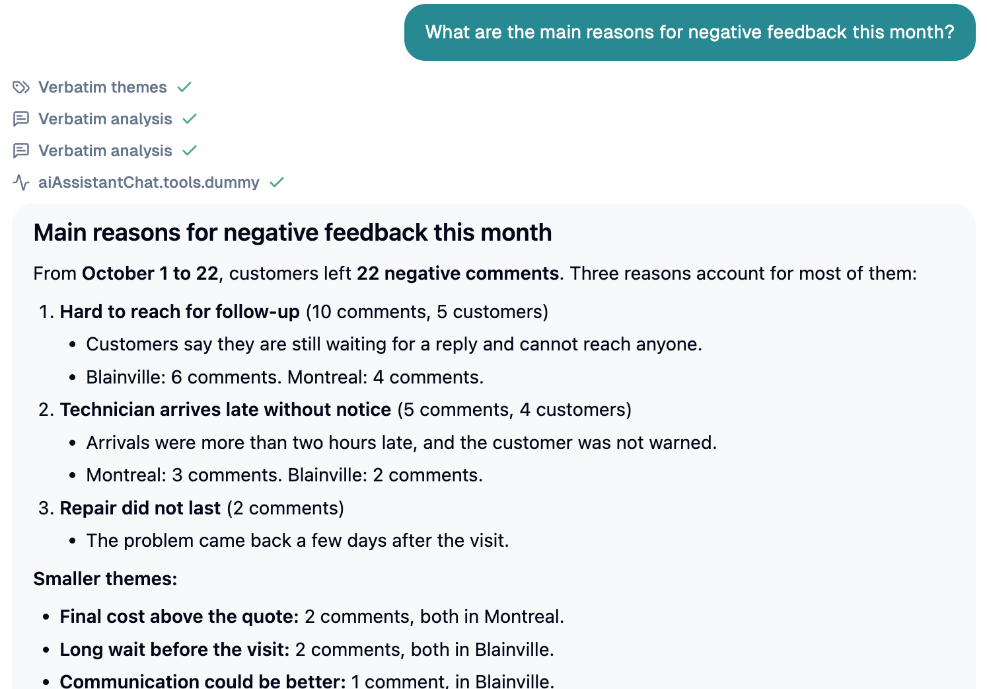
Type in the box Ask a question... and click Send message. Topic suggestions on the welcome screen can help you start (growth, operations, priorities, at-risk customers, reputation, team and managers, voice of customer...).
With the AI Assistant add-on, the assistant can use these sources, shown as it works:
Recent sendings and Survey metrics;
Location comparison;
Verbatim analysis and Verbatim themes;
Dissatisfied customers;
Google reviews;
ROI report;
Employee briefing;
CX health snapshot;
Daily coach report (Sara);
Root cause analysis;
Web search and Competitor search;
the InputKit Help Center.
Sources are shown as pills with a Sources bar. Without the add-on, the assistant still helps you with the actions listed below.
Dictate your question
Click the microphone (Start voice input). If your browser needs it, allow microphone access (the page must be secure, https).
Speak. A bar shows Listening... with the elapsed time. Click Stop voice input when you are done, or Cancel voice input to discard it. It also stops by itself after about 2 seconds of silence, and after 60 seconds at the most.
Your words are transcribed (Transcribing...) and placed in the box. Nothing is sent until you click Send, so you can edit first.
Attach a file
Click Add a file to attach images or documents (PDF, TXT, CSV, DOCX, XLSX): up to 25 MB per file and 5 files per message.
Let the assistant prepare an action
The assistant can prepare these actions. Nothing happens until you click Approve.
| Action | What it prepares | You need permission to | |---|---|---| | Create employee | Name, email, employee type, language, locations | create employees | | Create employee type | Display name and description | view employees | | Invite user | Email, name, role, language, location access | invite users | | Schedule mass send | A bulk send from a spreadsheet | create sendings |
Ask in plain language, for example "Invite Marie as a manager".
Review the card the assistant shows and change any field.
Click Approve to run it, or Cancel. You then see Action completed or Action cancelled.
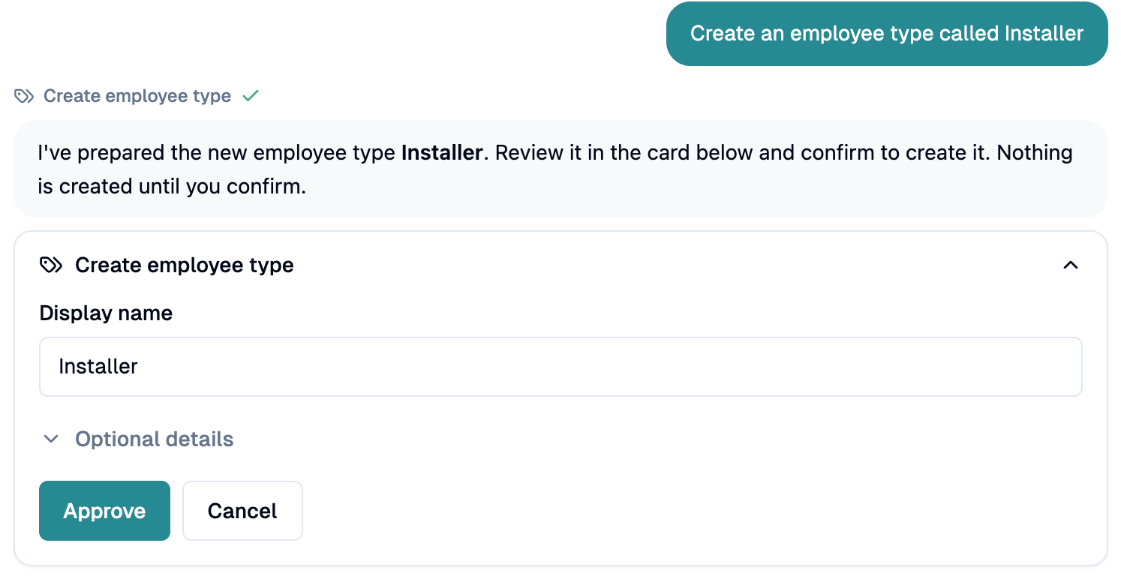
For a mass send: attach your CSV or Excel file and say which sequence to send. The assistant reads the file (Analyzing spreadsheet...) and proposes a column mapping (email, phone, full name, first name, last name, department, language, location, or ignore). Choose the sequence, the location, and the Send at date and time, then click Approve.
Your conversations
On the left (or Open chat history on mobile), Conversations lists your chats by date. Use New conversation, Search chats, or delete a conversation (this can't be undone). On each answer you can Copy, rate it Helpful or Not helpful, Retry or Edit your question.
If you have any questions, feel free to contact us via the chat.