How to set up WhatsApp sendings and templates
Connect a WhatsApp Business number, create message templates and send sequences by WhatsApp.
You can send your sequences to customers by WhatsApp. This article explains how to connect your number, create message templates, use them in a sequence and fix the most common problems.
Before you start
You need the phone permissions: viewing the page requires view access, and connecting, disconnecting or managing templates requires manage access (admins and managers have it by default).
Choose a number first. If your number is already connected to the WhatsApp app, disconnect it there before starting, otherwise the connection may fail.
Connect WhatsApp
Click your name in the top-right corner, then Integrations, and select WhatsApp.
Under Connect WhatsApp, choose a number:
Use one of my Twilio numbers (recommended): the same number is used for SMS and WhatsApp. Only numbers on your company's own Twilio sub-account are listed. If none is available, click Open Phone settings.
I already have a WhatsApp Business number.
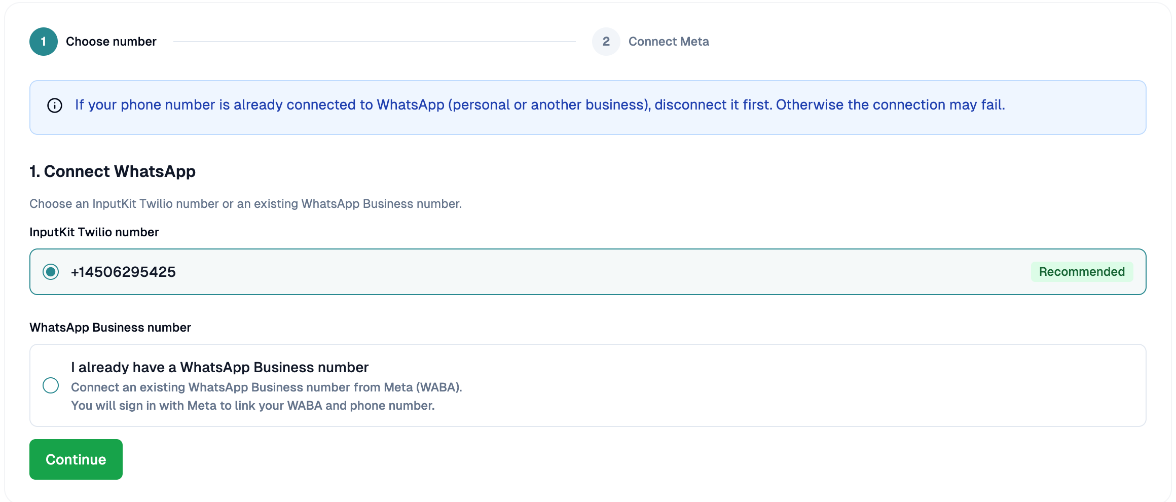
Click Continue.
Enter the Display name for this number. This is the name your customers will see, and it must follow Meta's display name guidelines.
Click Authorize with Meta (or Open Meta signup if you use your own number). Meta opens in a new window and you return to InputKit automatically.
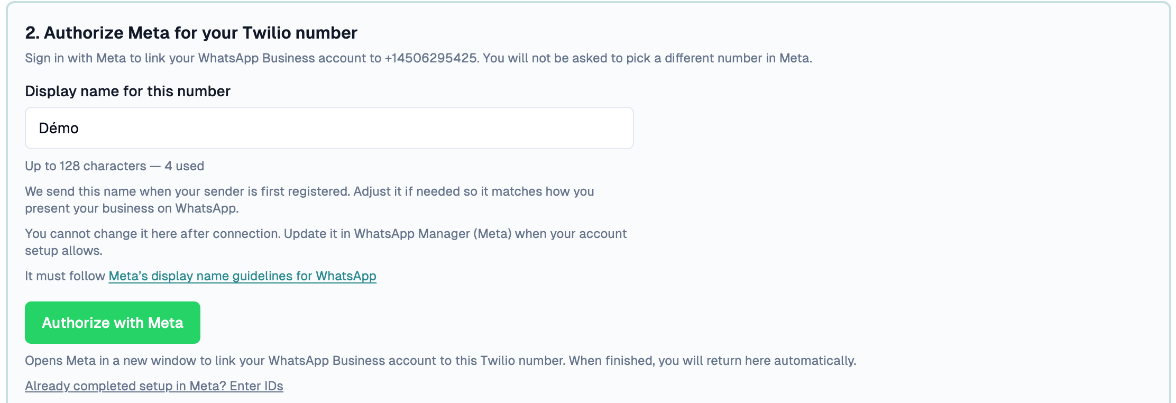
The status shows Pending approval. This usually takes 1 to 2 minutes and updates by itself. When it is done, you see Connected and the phone number marked Approved.
If Meta's window doesn't return: click Already completed setup in Meta? Enter IDs and fill in the WABA ID and Phone number ID, then click Connect WhatsApp.
Fill in your business profile
Once connected, the Business profile section appears.
Add your Profile photo (JPG or PNG, square, at least 640 × 640 px), Business address, Business website, Business email, Business category, Business description (512 characters max) and Profile about (139 characters max). Website addresses must start with http:// or https://.
Click Save profile.
The display name, Quality rating and Messaging limit are read-only here. To change the display name, use WhatsApp Manager in Meta.
Create a message template
WhatsApp requires a template, approved by Meta, to start a conversation.
In WhatsApp Templates, click Create template.
Choose how to Start from (Blank or a suggested template) and the Template type:
Text only;
With URL button: add a Button title (20 characters max) and choose the Button link type: Survey link (for invitations), Custom URL, or Google review link (for review reminders);
Card (image + button): add a header image from your library or a public HTTPS image URL (jpg, png or webp), an optional footer (60 characters max) and a URL button.
Enter the Template name (lowercase letters, digits and underscores, starting with a letter, for example
survey_invitation_en), the Language and the Category (Utility or Marketing).Write the Body. Use
{{1}},{{2}}… for variables, then fill in the Sample values for approval, which are sent to Meta.
Writing rules the form checks for you
The body can't start or end with a variable, or have two variables side by side.
Variables are numbered in order, up to 10.
At least 10 fixed characters and 3 words outside variables.
No sensitive terms (password, PIN, etc.).
Promotional wording in a Utility template triggers a warning.
Save the template as a draft, then click Submit. The button is disabled until WhatsApp is connected.
Template statuses
| Status | Meaning | |---|---| | Draft | Editable; not sent to Meta yet | | Pending | Submitted, waiting for approval | | Approved | Ready to use | | Rejected | See the Rejection reason shown on the row |
Statuses refresh automatically about every 10 minutes. Only drafts can be edited; for other templates use View or Duplicate. Delete removes the template, which can affect sequences that use it.
Use a template in a sequence
Open your sequence and go to the WhatsApp tab (WhatsApp configuration).
For each language, pick a template under Template per language, then map its variables to a shortcode, a custom field or fixed text. The link variable is filled in by InputKit.
Save the sequence. Settings are only saved when the sequence is saved.
A template must be Approved before it can be sent.
Choose WhatsApp as your sending method
For the whole company: open Company, section Sending, and set Sending strategy to Send only by WhatsApp (when available). The option only appears once WhatsApp is available.
For one sending: in Send a sequence, choose WhatsApp under Send Method.
Troubleshooting
No template message: "No WhatsApp template is set for this survey and language". Add a template for that language in the sequence's WhatsApp tab.
Template not approved yet / rejected: wait for approval, or fix the template using the rejection reason and submit again.
Customer opted out: the sending is blocked for customers who unsubscribed from WhatsApp.
Still waiting on approval: after several minutes the page offers Retry status checks or Cancel setup.
Your sender was rejected: click Try again, or Disconnect and start over.
Bulk sends: if WhatsApp is rate-limited, the batch is postponed by 24 hours.
Disconnect WhatsApp
Click Disconnect and confirm. The sender is removed and WhatsApp data is cleared in InputKit. You can reconnect later.
If you have any questions, feel free to contact us via the chat.