How to manage employee types
Create employee types such as technician or manager, use them in questions and merge duplicates.
Employee types are the roles of your employees (for example Technician, Manager or Support). They let you ask a question about a specific kind of employee and compare performance by role.
Open employee types
Click your name in the top-right corner, then Settings, open Employees, and in the Employee Types Management line click Manage. Administrators see this line.
Create a type
Click Create a type.
Enter the Display Name (for example Technician), an Internal Code (lowercase, no spaces; it is used internally and must be unique) and an optional Description.
Click Create.
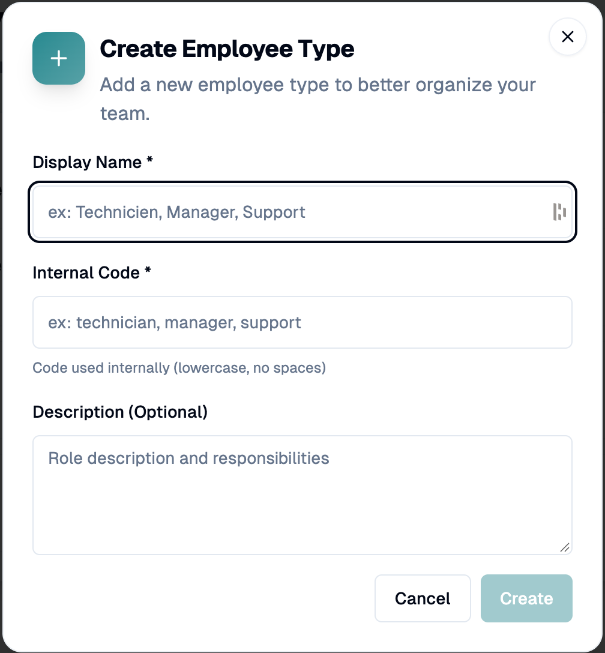
If the code already exists, you will see This code already exists.
Use a type in your questions
In the sequence editor, open a question and choose the Employee type to evaluate. The question is then about that role. Leave No specific type (general question) for general questions. Types are also used in display logic and in employee reports.
Edit or delete
Click the pencil to edit a type.
Click the trash to delete it. Employees already assigned to it are not affected.
Merge duplicate types
Click Merge Types (shown when you have two or more types).
Tick the types to merge under Select types to merge.
Choose which one to keep under Merge into.
Optionally click Preview Impact, then Confirm Merge.
The merge is irreversible: employees, sendings, questions, responses and reports linked to the other types move to the type you keep.
If you have any questions, feel free to contact us via the chat.