How to create custom metrics
Create your own metrics, attach them to questions and follow them on the dashboard.
A metric measures one aspect of your service, such as "Service Quality" or "Cleanliness". You attach it to questions in your sequences, and InputKit calculates its score from the answers.
Create a metric
Click your name in the top-right corner, then Settings, and open the Metrics tile (Metrics Management).
Click Add Metric.
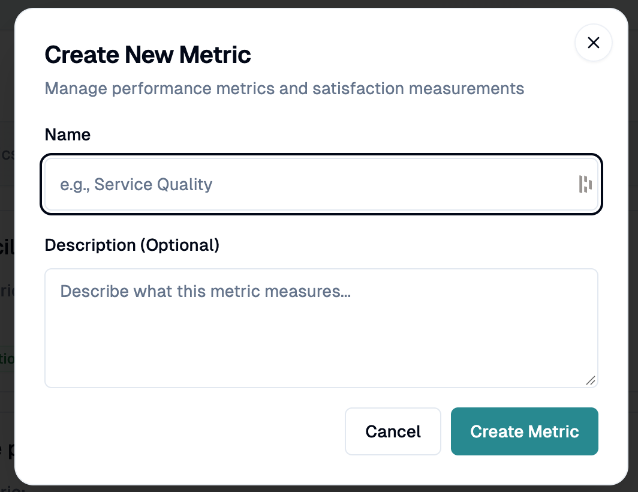
In Create New Metric, enter a Name (required) and an optional Description.
Click Create Metric. Metric created successfully appears.
Attach a metric to a question
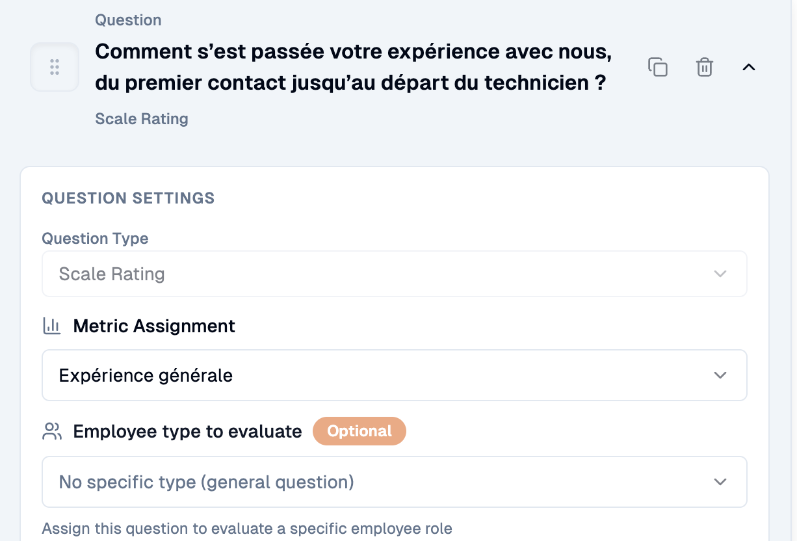
Open your sequence and select a scale or scale matrix question. Metrics can only be attached to these question types.
In Metric Assignment, choose the metric (you can also create one from there).
Save the sequence.
Where you see the results
Each metric's score (out of 10) can appear as a card on your Dashboard, and in location reports and the weekly and monthly digests. Test sendings are excluded.
Edit, archive and restore
Click the pencil to Edit Metric, then Update Metric.
Click the archive icon to Archive Metric. It is hidden from active use but its data is kept.
To restore one, choose Archived metrics in the display filter and click the restore icon.
Under each metric, Sequences using this metric lists the active and archived sequences that use it.
If you have any questions, feel free to contact us via the chat.