How integration triggers work: mapping, filters, scheduling and logs
Understand the Integrations page, how to build a trigger, and how to check what happened in the Integration Logs.
Most InputKit integrations work with triggers: when something happens in your other software (an invoice is closed, a visit is completed...), InputKit sends a sequence to your customer. This article explains the Integrations & API page and the options you will find in every trigger.
Open the Integrations page
Click your name in the top-right corner, then Integrations.
You need permission to view integrations. To connect, edit or delete anything you need permission to manage integrations (admins and managers by default).
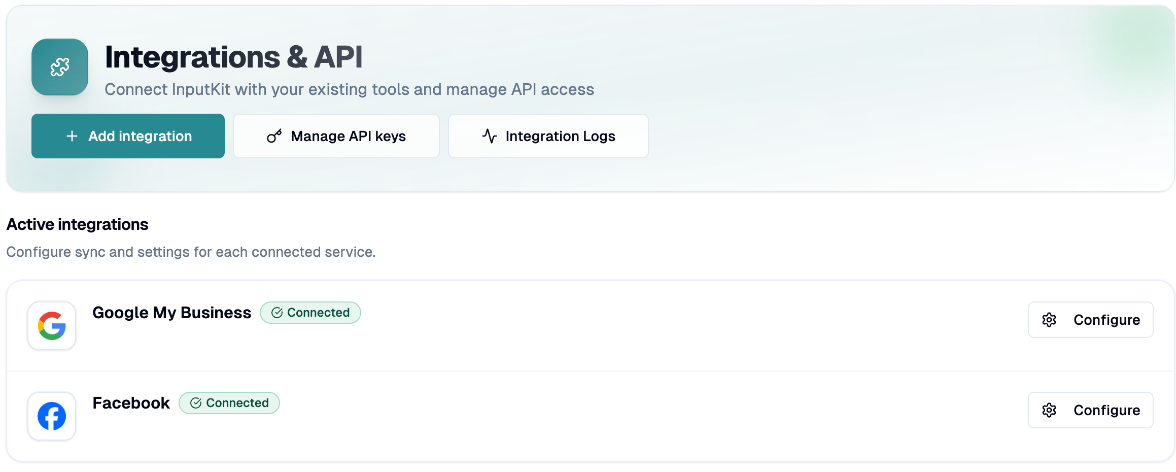
The page has three buttons at the top:
Add integration: opens the Select Integration window.
Manage API keys: see the article on finding your API key.
Integration Logs: see below.
Connected integrations
Active integrations lists every integration that is connected, waiting for verification or in error, with a status badge: Connected, Pending verification or Error. Click Configure to open its page.
Add an integration
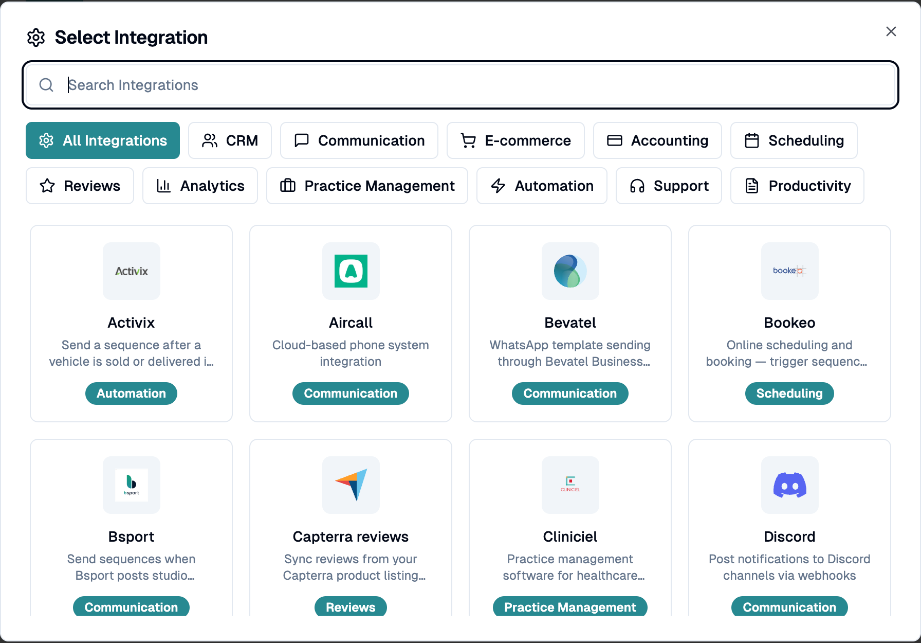
Click Add integration.
Search by name or filter by category: CRM, Communication, E-commerce, Accounting, Scheduling, Reviews, Analytics, Practice Management, Automation, Support or Productivity. Software that matches what you told us at sign-up is shown first with a Suggested badge.
Click the integration to open its page and follow the connection steps.
Your software isn't listed? Click My software isn't listed, type its name under Software name, and Save. This keeps a list of the tools you use on your company record so integrations can be prioritized. You need permission to edit company settings to save.
Build a trigger
Triggers are created in 3 steps (some integrations differ slightly).
Step 1: Trigger configuration
Trigger name (optional).
Sequence: the sequence to send.
Default location: used when the location can't be found from your mapping. Choose Use mapped location to rely on the mapping only.
Send scheduling (when offered): Fixed delay or By date.
Step 2: Custom fields and mapping
Match the information coming from the other software to InputKit: first name, last name, email, phone, language, employees and so on, or to your Customer and Sending custom fields. Use Create from Properties to create custom fields directly from the data received.
If the location comes from your software, use Location association: Automatic association, or Manual association with rules such as "Equals" or "Contains" a value, each pointing to a location.
The example data comes from a recent record in the other software. If none exists yet, the list can be empty: create a record there, then reopen the trigger.
Step 3: Filters on custom fields (optional)
Click Add filter, then choose a Field, an Operator and a Value. The sequence is sent only when the data matches your rules. Operators: Equals, Not equals, Contains, Does not contain, Starts with, Ends with, Is empty, Is not empty, Greater than, Less than, Not in list. You can enter several comma-separated values: the condition is met if any one matches. Records that don't match are not sent and appear as Filtered in the logs.
Click Create trigger (or Update when editing).
Choose when to send
Fixed delay: a number of minutes after the event (0 sends immediately).
By date: choose a Reference date field, a Number of days and before or after that date. If the calculated moment is already past, or the date is empty, the sequence is sent immediately.
Company quiet hours can still move a sending; the log then shows a Quiet hours badge.
Manage a trigger
On each trigger card you can see the name, sequence, default location, filters, delay and Last data received, and you can:
open the trigger's Integration logs;
turn test mode on or off for this trigger (a Test mode badge shows when it is on);
Pause or Resume;
Edit or Delete (deletion can't be undone).
Read the Integration Logs
Click Integration Logs (or the logs icon on a trigger). The page shows the last 90 days.
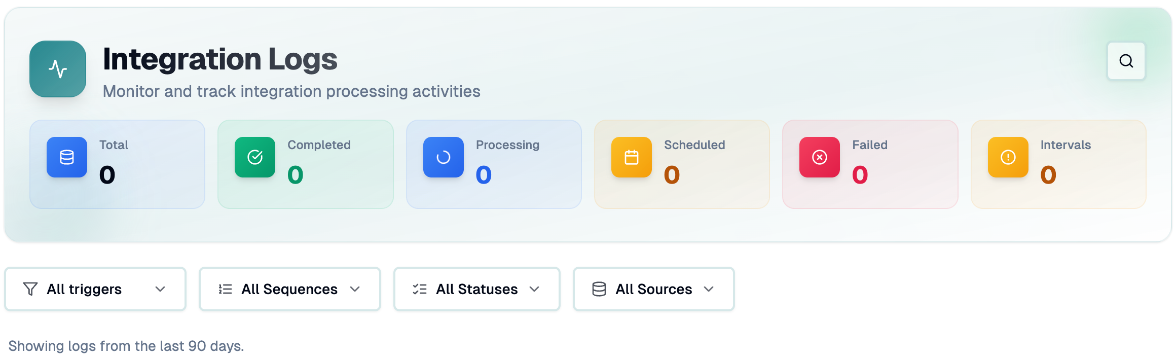
Search and filter by Triggers, Sequences, Statuses and Sources. Click Clear all to reset.
Statuses: Success, Processing, Scheduled, Pending, Failed, Blocked, Filtered, Intervals.
Intervals: the minimum time between two sendings to the same customer prevented the send.
Blocked: a sending limit was reached, or the attempt failed with nothing sent.
Filtered: your trigger filters were not met.
Click Show Details on a row for the Raw data, the sending IDs and the sending date and time.
The list refreshes by itself every 15 seconds while some items are still waiting to be sent.
Be alerted when an integration stops working
For integrations such as Slack, Teams, QuickBooks, HubSpot, Zoho Books, Discord, Genesys, Progression Live, Servex, Jobber and Bsport, InputKit checks the connection every day. If it fails, admins receive an Integration alert once. Choose how in Settings, Notifications, row Integration alerts. Aircall, Lightspeed, Zenoti, Capterra and RateMDs aren't covered by this check.
If you have any questions, feel free to contact us via the chat.