The Questionnaires report: analyze, compare and export your results
Review each question's results, compare periods or groups with segments, and export to Excel or PDF.
The Questionnaires report shows how each question of a questionnaire was answered and lets you compare periods or groups.
Open the report
In the left-hand menu, open Reports, then Questionnaires. You need permission to view questionnaire reports (and a separate permission to export).
Choose what to analyze
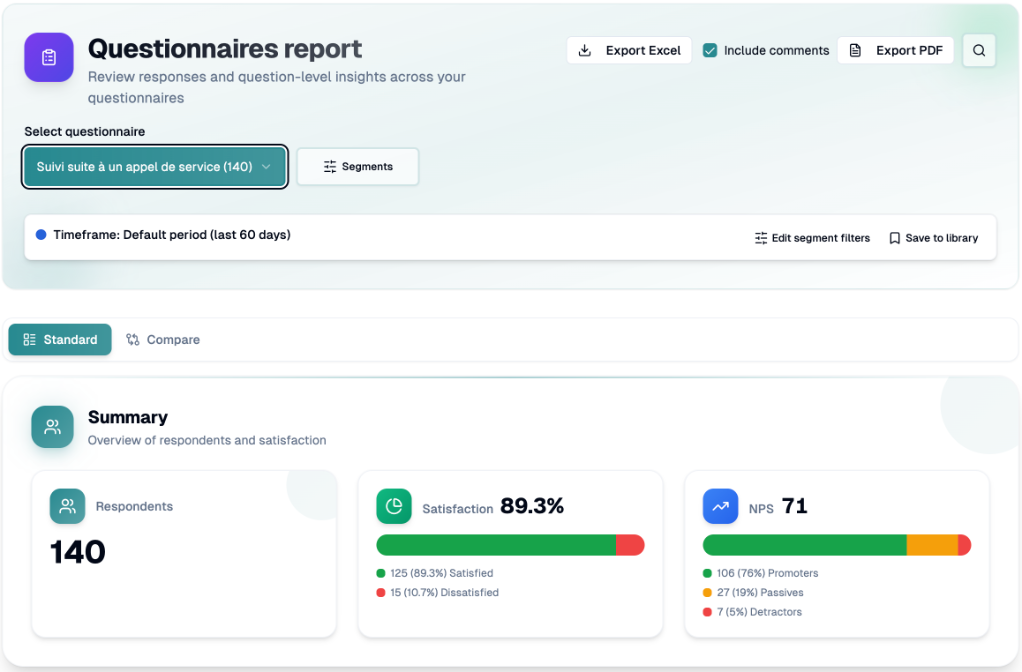
In Select questionnaire, choose a questionnaire (the number of responses is shown).
Click Segments. On the Build tab, set the Timeframe, Location, Employee, Department, Service and your Custom fields, then click Apply. The report loads once a scope is applied. Your choices appear under Applied filters.
Standard view
Summary: Respondents, Satisfaction (satisfied and dissatisfied) and NPS (promoters, passives, detractors).
Question by question: one card per question. Choice questions show ranked bars, NPS shows promoters, passives and detractors, scales show a distribution, matrices show each item.
For open-ended questions, open Responses to read them 10 at a time and View response to open the full answer.
Search questions... narrows the list on screen.
If a free-text question has 50 responses or more and you have the AI add-on, a shortcut to Verbatim Insights is suggested.
NPS = % promoters (9-10) minus % detractors (0-6). Satisfaction is the share of satisfied customers, calculated only when the questionnaire has a satisfaction question. Numbers can differ slightly from other screens because each report counts a different group of sendings.
Compare
Click the Compare tab.
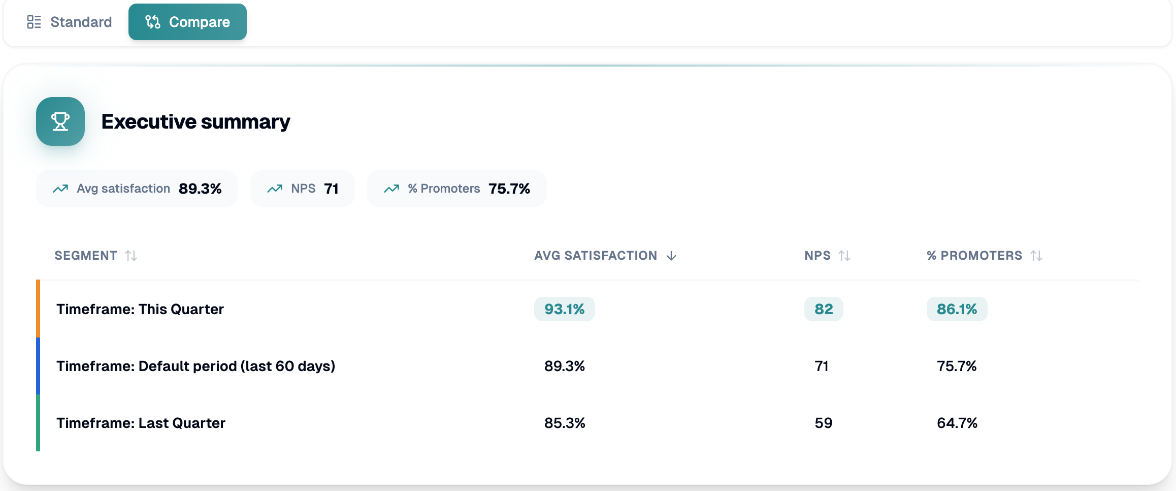
Add at least 2 segments: Add segment (from the current filters), Add from saved, or Quick add for common pairs such as "This month vs same month last year", "This week vs last week", "This quarter vs last quarter" or "This year vs last year".
You get an Executive summary table (average satisfaction, NPS, % promoters, response rate) and comparison charts for each question.
A segment with fixed custom dates doesn't move forward over time (Fixed dates badge).
Save segments
Click the bookmark icon on a segment, name it and Save segment. Use the Saved tab to reuse it later. Saved segments are kept for your own user account.
Export
Export PDF downloads a report with the questionnaire, period, filters and summaries. Tick Include comments to add comment cards (up to 20 samples per question).
Export Excel asks for an email address and a file name. The file is emailed to you when ready and contains one row per sending and one column per question, with your current filters. Up to 50,000 sendings per export.
Both are available once the report has at least one respondent.
If you have any questions, feel free to contact us via the chat.