How to connect Zenoti to InputKit
Send a sequence when an invoice is closed in Zenoti, for the centers you choose.
The Zenoti integration sends a sequence to your customer when an invoice is closed in Zenoti. You create a trigger in InputKit and a webhook in Zenoti.
Before you start
You need permission to manage integrations.
From the Zenoti developer portal, get your Application ID, App Secret and API Key.
Connect Zenoti
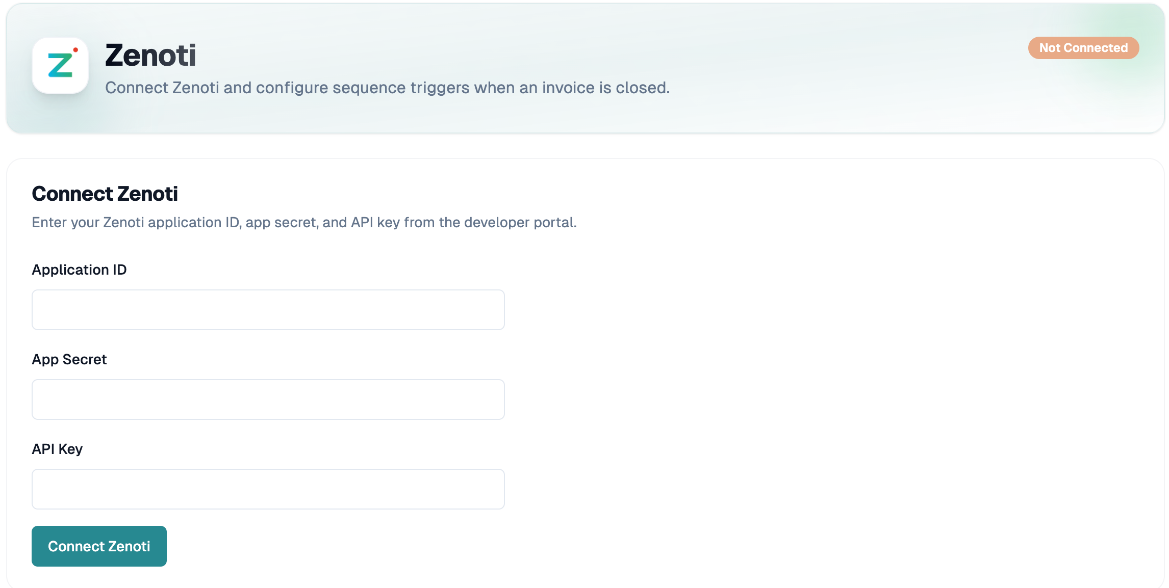
Click your name in the top-right corner, then Integrations, then Add integration and choose Zenoti.
Under Connect Zenoti, enter the Application ID, App Secret and API Key (all three are required).
Click Connect Zenoti. The message Zenoti connected appears.
InputKit checks the API key with Zenoti when you connect.
Create the webhook in Zenoti
In the Webhook URL card, click Copy URL.
In Zenoti, create a webhook that points to this URL and select the invoice closed event. InputKit does not create it for you; follow Zenoti's documentation for the exact steps.
Create a trigger
In Zenoti triggers, click Add Trigger.
Fill in step 1:
Trigger type: Invoice closed (the only one; it can't be changed later);
Centers: required. The sequence is sent only for invoices from the centers you select;
Sequence and Default location;
Send scheduling: Fixed delay or By date (for example based on an invoice or appointment date).
Step 2 maps the fields (invoice, guest, invoice items, transactions, appointments). The available fields come from an invoice closed in Zenoti during the last 7 days. If you see "Could not load Zenoti field catalog", close an invoice in Zenoti, then try again.
Step 3 adds optional filters. For lists such as invoice items, choose At least one element matches or All elements must match.
When is a sending created?
Zenoti notifies InputKit as soon as an invoice is closed.
The invoice's center must be one selected in the trigger.
Refund invoices are ignored.
An invoice is sent once per trigger (re-closing the same invoice within 30 days won't send again).
If there is no email or phone number, nothing is sent.
Invoices that don't match your filters are logged as Filtered.
Check the Integration Logs to follow each event.
Disconnect
Click Disconnect at the top of the page. There is no confirmation: your credentials and all Zenoti triggers are deleted.
If you have any questions, feel free to contact us via the chat.