How to connect Jobber to InputKit
Automatically send a sequence when a Jobber visit is completed.
The Jobber integration automatically sends a sequence to your customer when a visit is completed in Jobber. You don't need to set up any webhook yourself: InputKit takes care of it.
Before you start
You need permission to manage integrations in InputKit.
The person who approves access in Jobber must be a Jobber admin.
Only one connection is possible per company and Jobber account.
Connect Jobber
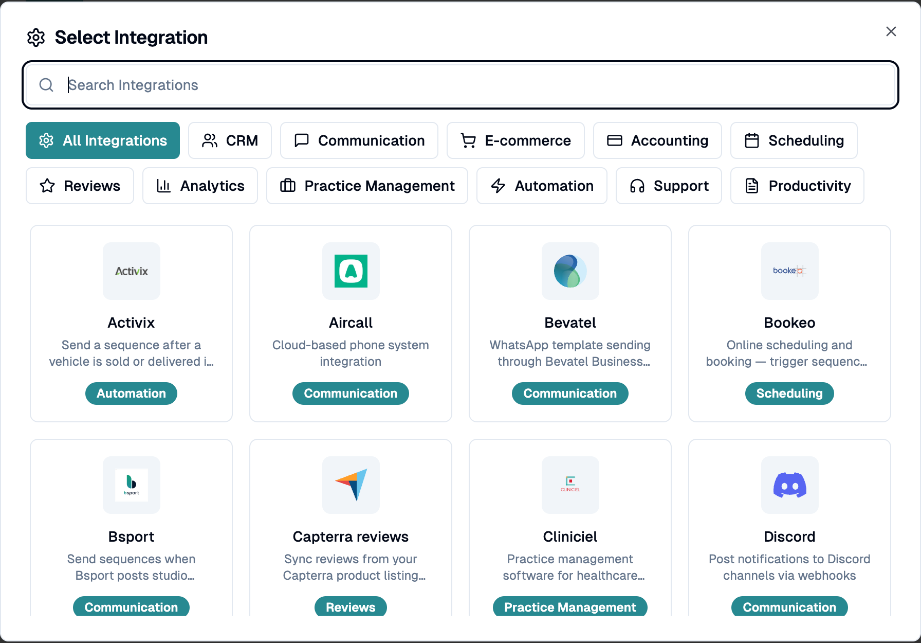
Click your name in the top-right corner, then Integrations, and select Jobber.
Click Connect Jobber.

You are redirected to Jobber, where a Jobber admin allows access.
You return to InputKit with the message Jobber connected. Your Jobber account name appears under Connection status.
Create a trigger
A trigger defines which sequence to send, after what delay, and for which location.
Under Sequence triggers, click Add trigger.
In Trigger configuration, fill in:
Trigger name (optional).
Trigger Type: "Visit completed" (the only type available).
Sequence (required).
Default location: used when the location is not resolved from the field mapping.
Delay (minutes): 0 to send immediately.
Click Next. In Custom fields and mapping, map the Jobber fields (client, visit, job, property) to InputKit information: email, phone, first name, last name, language, employee, location or a custom field. If you save no mapping, email, phone, name and employees are taken from the visit automatically.
In Filters on custom fields (optional), restrict sending to visits that match your criteria, for example "Contains" or "Equals". You can enter several comma-separated values.
Click Create trigger.
When is a sending created?
A sending is created for each active trigger when a visit is marked as completed in Jobber, unless:
the client has turned off review requests in Jobber;
the visit has neither an email nor a phone number;
a filter excludes the visit;
no location can be determined (mapping or default location);
a sending was already created for that visit and trigger.
Sendings also follow your company's sending method and quiet hours.
Manage your triggers
On each trigger card you can Pause or Resume, Edit, Delete, open the Integration logs, and see the Last data received. The flask button puts the trigger in test mode.
Disconnect Jobber
Click Disconnect Jobber and confirm. New completed visits will no longer create sendings.
If you have any questions, feel free to contact us via the chat.