How to connect Bsport to InputKit
Trigger sendings from Bsport bookings, members and invoices using webhooks.
The Bsport integration uses webhooks: Bsport notifies InputKit when an event happens (booking, member, invoice), and InputKit sends the sequence you chose. There is no OAuth login or API key: you paste a URL into the Bsport backoffice.
Enable Bsport
Click your name in the top-right corner, then Integrations, and select Bsport.
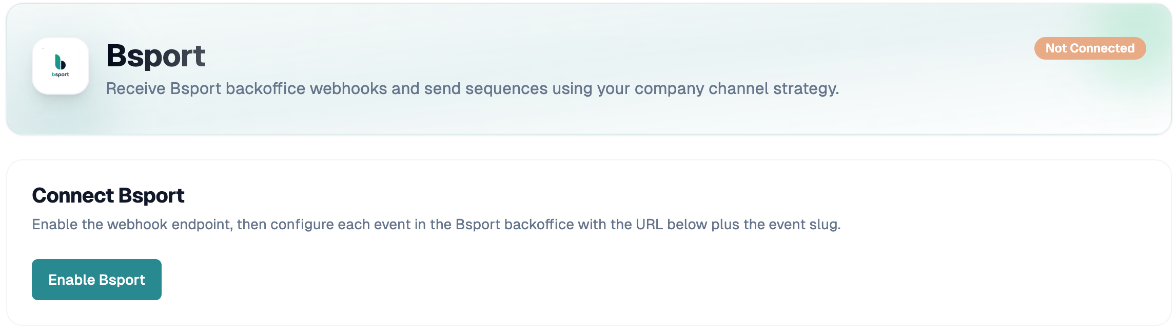
In the Connect Bsport card, click Enable Bsport.
The message Bsport connected appears, along with the Webhook URL base.
Create one trigger per event
Create a trigger for each Bsport event you configure in the backoffice.
Click Add trigger.
Choose the Bsport event:
Booking created, updated or deleted;
Member created or updated;
Tag applied to member or removed from member;
Invoice finalized, reverted, paid or disputed.
Choose the Sequence, the Default location and the Delay (minutes).
Optionally add filters (see below), then click Save.
Paste the URL into Bsport
Each trigger has its own full URL, shown under URL to paste into Bsport or through the Copy webhook URL button on the trigger card.
Copy the URL.
In the Bsport backoffice, open Webhooks.
Add one webhook per event, choosing the same event type as in InputKit, and paste the URL.
Important: the end of the URL (for example invoice-pay) must match the event type Bsport sends. Otherwise the event is rejected.
Contact information
Email, phone, first name and last name are taken automatically from the customer or member in the event. There is no mapping step. If the event contains no valid email or phone number, no sending is created.
Filter events
The fields available for filters come from the events InputKit has already received from Bsport. Before the first webhook, you can save without filters, or use Set up fields before the first webhook (advanced) to paste a sample JSON and click Load fields. Received data is kept for only 14 days, solely to discover these fields.
Monitor and troubleshoot
Last event received shows when Bsport last contacted InputKit ("Never" if nothing has arrived).
The same event for the same contact is processed only once within 24 hours.
Regenerate URL replaces the base URL: you must then update every webhook in Bsport, because the old URL stops working immediately.
Disconnect Bsport deletes the triggers; webhooks will no longer create sendings.
If you have any questions, feel free to contact us via the chat.