Billing: your plan, add-ons, invoices and payment
Find your subscription, upgrade, add options, open invoices and fix an overdue payment.
The Billing page is where you manage your subscription, options, payment methods and invoices.
Open Billing
Click your name in the top-right corner, then Billing. You need permission to view billing to see the page, and permission to manage billing to make changes. Billing is not shown in the mobile app.
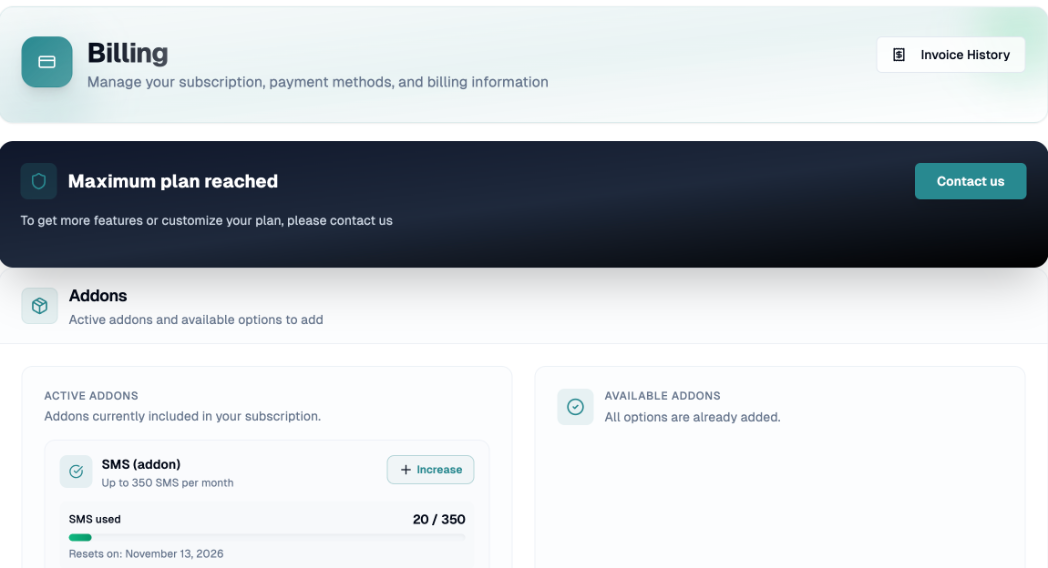
What you will find
Plans: Your current plan and the Upgrade plan card.
Addons: Active Addons and Available addons.
Billing: Billing Profiles (your payment methods), Recent Invoices and View All Invoices.
Quota cards such as User Limit, Employee Limit, SMS Limit and AI usage show how much you have used. Bars go green, then orange from 50%, then red from 80%.
Start a plan (free trial accounts)
Under Choose a plan to get started, click Select this plan on the plan you want.
If a payment method is already on file, the subscription starts right away. Otherwise you are sent to the secure Stripe payment page.
Upgrade your plan
On the Upgrade plan card, click Upgrade my plan.
In Confirm upgrade, review the prorated amount, taxes and Total Due Now. If nothing is due now, the upgrade applies at your next billing cycle.
Confirm. Plan upgraded successfully appears.
If you are on the highest plan, the page says Maximum plan reached and invites you to contact us. Custom plans are changed by contacting us.
Add or increase an option
Click Add addons and choose an option: AI Assistant, Additional office or SMS.
Confirm the addition. You are charged a prorated amount.
To change it later, click Increase on an active option. For the AI Assistant, choose the monthly volume that fits your feedback; a recommended tier is suggested from your past usage.
Each Additional office adds one location and two users, up to 7 additional offices; contact us for more. The SMS card shows SMS used and the date it resets.
Update your payment method
In Billing Profiles, click the pencil icon (or Manage in the overdue banner). The secure payment portal opens in a new tab.
View and open invoices
Click View All Invoices to see Invoice History (20 per page; you can show 10 or 50). Each row shows the date, Status (Draft, Open, Paid, Past Due, Uncollectible, Void) and the total. Click Open invoice to view it.
Overdue payment
If a payment fails, a Payment overdue banner appears with Open unpaid invoice and Go to billing. You have 20 days to settle it. After that, a window titled Your account needs attention blocks the app except Billing, so you can pay. Payments that are still being processed (for example bank transfers in transit) don't lock the account.
Free trial ended
If your free trial ends without a plan, the app locks except Billing and Settings. Click Choose a plan to continue. The page also recaps what you achieved during the trial.
Invoiced through QuickBooks
If you are billed through QuickBooks, Billing shows a Billing card to View All Invoices only. Plans and options are managed by contacting us.
If you have any questions, feel free to contact us via the chat.